Turn a deck into polls
Point your assistant at a PowerPoint or an agenda and ask for polls. It reads your session and proposes ready-to-run questions you can launch in one click.
CrowdHum is now available as an MCP server. Connect it to the AI assistant you already use and let it run your polling for you. Point it at the PowerPoint for your next talk and ask for a poll set. After the room votes, ask it to analyze the results. No copy-paste, no tab-switching.
Point your assistant at a PowerPoint or an agenda and ask for polls. It reads your session and proposes ready-to-run questions you can launch in one click.
Ask your assistant to break down how the room voted: the themes, the splits, and the one takeaway worth repeating on stage.
CrowdHum is listed in the ChatGPT plugin directory, so there it is a two-click add. It also works with any other AI assistant that supports MCP. Pick the one you use, or follow the same pattern in your own client.
Add CrowdHum as a custom connector in Claude. Works on claude.ai in the browser, about two minutes.
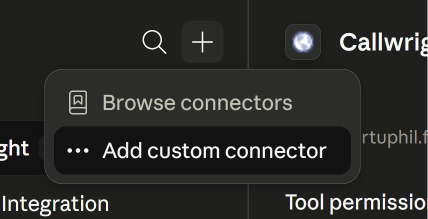
Go to claude.ai/customize/connectors. Click the + button and choose Add custom connector.
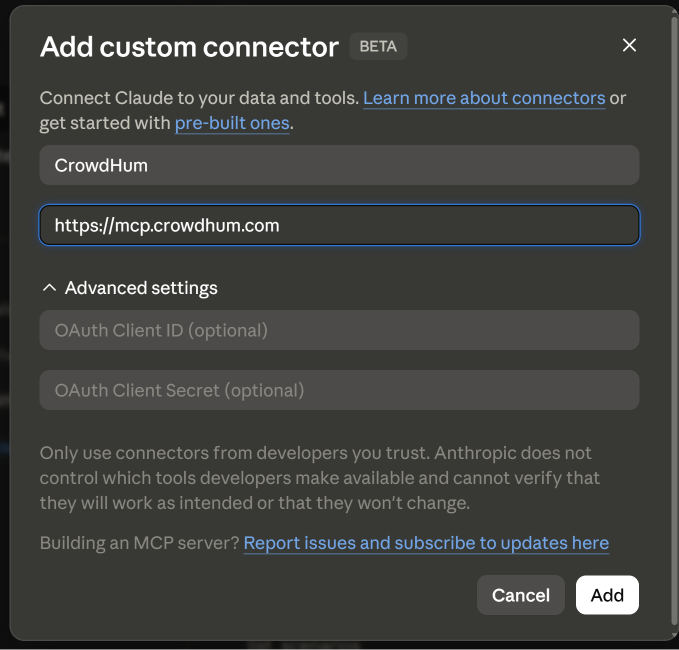
In the dialog, fill in:
| Name | CrowdHum |
|---|---|
| URL | https://mcp.crowdhum.com |
| Advanced settings | Leave OAuth Client ID and Secret blank. CrowdHum handles sign-in for you. |
Then click Add.
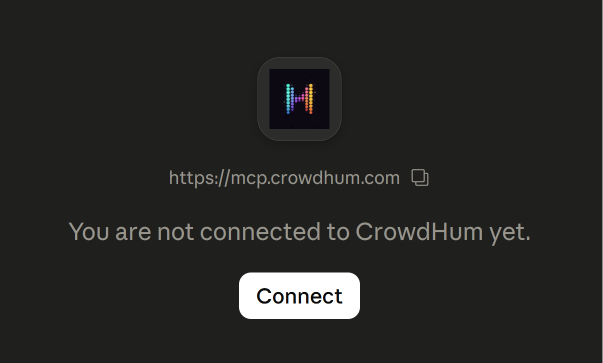
The CrowdHum connector now appears in your list. Click Connect to start authorizing.
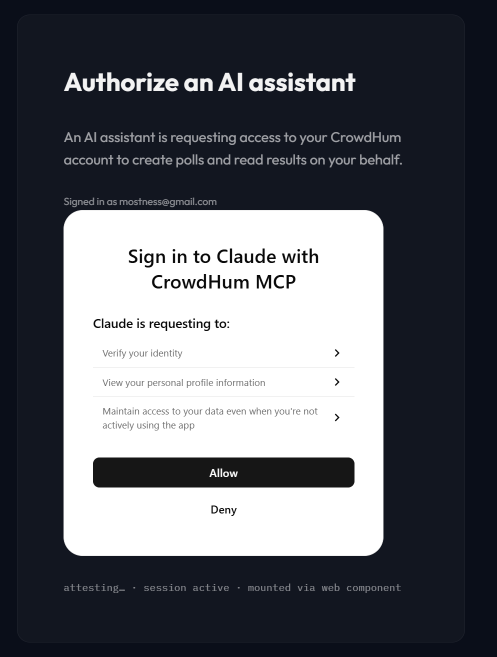
CrowdHum's authorization page opens. Sign in if you're prompted, then click Allow to let Claude create polls and read results on your behalf.
Claude confirms Connected to CrowdHum and lists the tools it can use. Set them to Always allow if you'd rather not be asked each time. Now try: "Here's my deck, draft a few polls for it," or "Summarize how room ABCD voted."
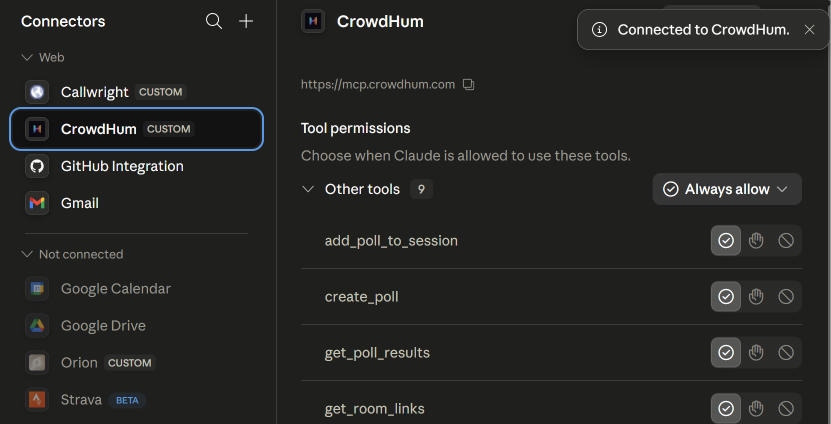
Install the CrowdHum plugin in Claude Code with two commands. It bundles ready-made skills (so Claude already knows how to design and run your polls) plus the MCP tools.
In Claude Code, run:
Then install it and reload when prompted:
You get the crowdhum skills and the MCP tools together.
The first time Claude calls a CrowdHum tool it opens the sign-in page in your browser. Approve access and you're connected. Sign-in is OAuth, so there's no token to copy or paste.
Install the CrowdHum plugin in the GitHub Copilot CLI with two commands. It bundles the skills and the MCP tools together. Requires the @github/copilot CLI installed and signed in (npm install -g @github/copilot).
In the Copilot CLI, run:
Then install it:
You get the crowdhum skills and the MCP tools together.
The first time Copilot calls a CrowdHum tool it opens the sign-in page in your browser. Approve access and you're connected. Sign-in is OAuth, so there's no token to copy or paste.
Skip the plugin and connect the tools directly with the built-in wizard (you won't get the skills, just the raw MCP tools).
In the Copilot CLI, run:

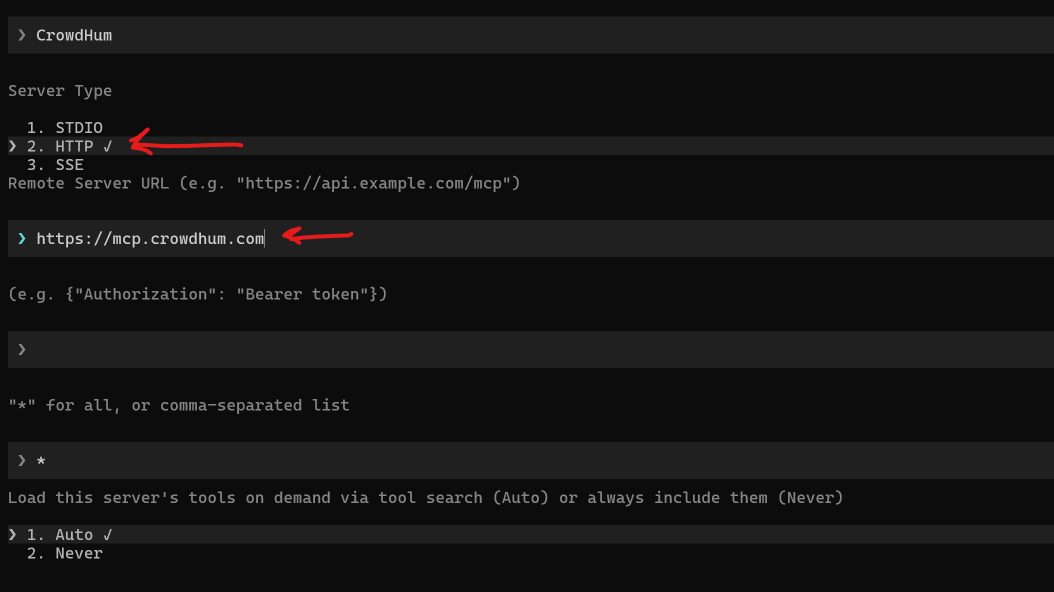
The wizard asks a few questions. Use these answers:
| Server Type | HTTP (choose option 2, not STDIO or SSE) |
|---|---|
| Remote Server URL | https://mcp.crowdhum.com |
| Headers | Leave empty and press Enter. OAuth handles auth; there is no bearer token to paste. |
| Tools | * (allow all tools) |
| Tool loading | Auto (load on demand via tool search) |
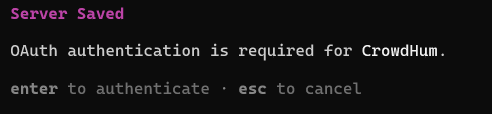
The CLI saves the server, then tells you OAuth authentication is required. Press Enter to start the browser sign-in.
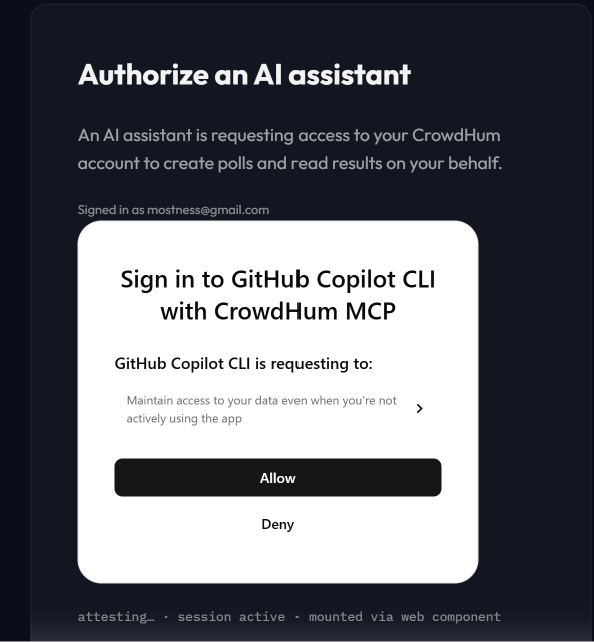
Your browser opens the CrowdHum authorization page. Sign in if needed, then click Allow to let the Copilot CLI act on your behalf.

That's it. Your assistant can now create polls, add them to sessions, and read live results. Try asking it to build a poll set from a meeting agenda, or to summarize how a room voted.
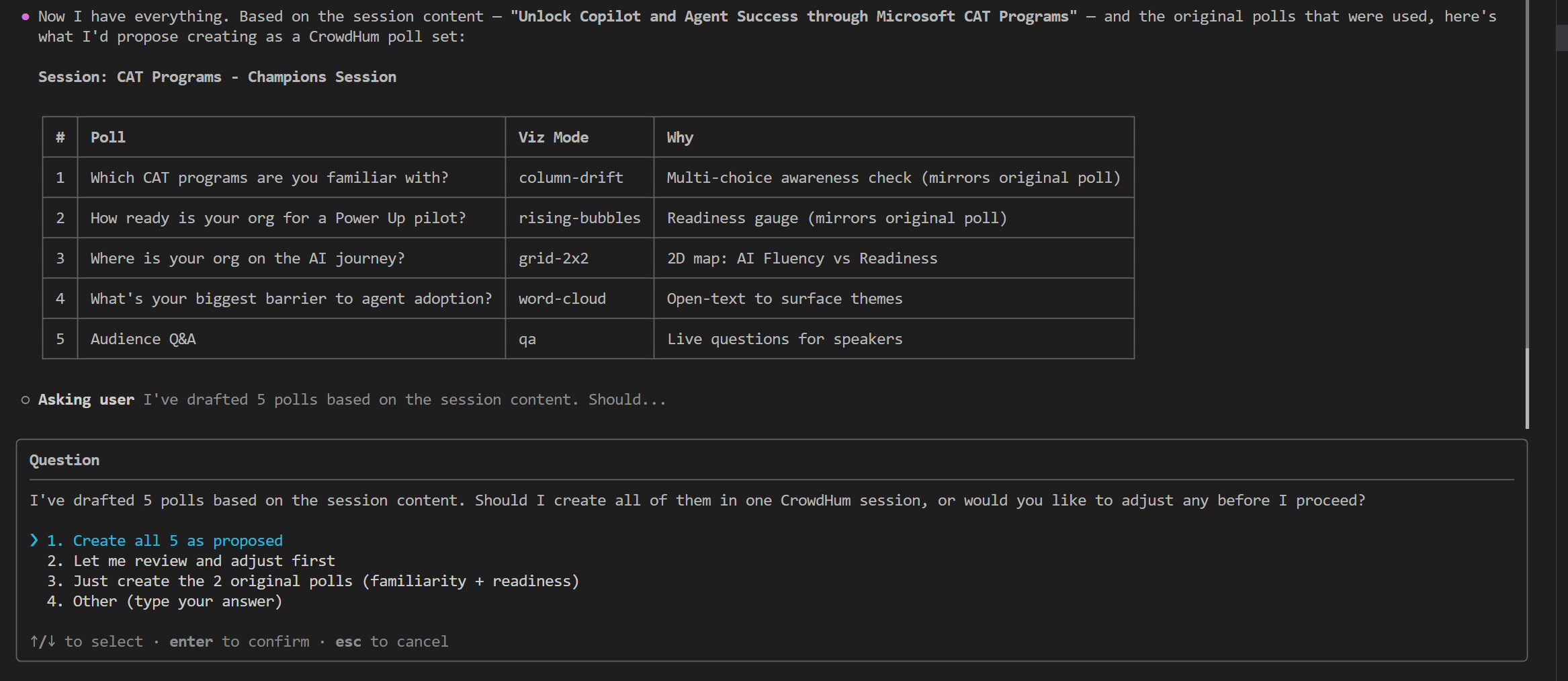
CrowdHum is listed in the ChatGPT plugin directory, so there's nothing to configure and no URL to paste. The directory is visible on every plan, though whether you can install depends on your plan, workspace settings, role, and region.
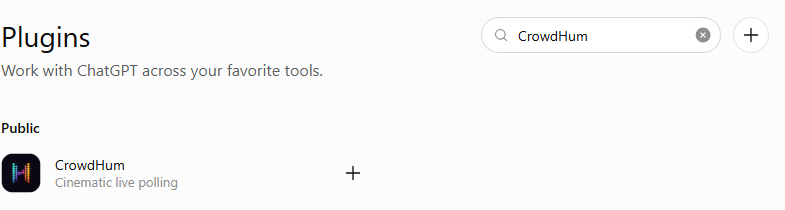
Open CrowdHum in the ChatGPT plugin directory. You can also choose Plugins in the sidebar, search for CrowdHum, and open the result under Public.
If Install plugin is greyed out or says Disabled by admin, your workspace has not enabled the plugin and an admin will need to turn it on.
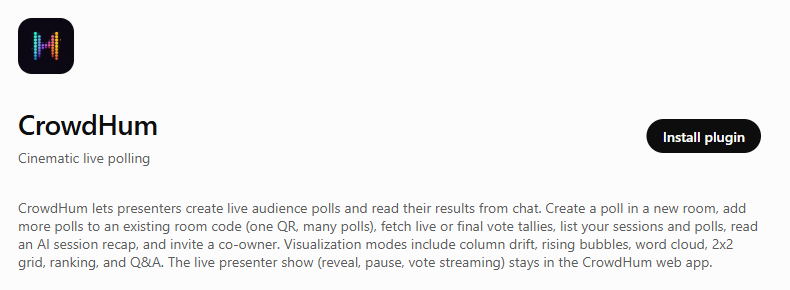
Select Install plugin. ChatGPT opens a new tab on CrowdHum, where you sign in and approve access. There is no token to copy.
Approving grants your assistant the same authority you have over your own polls: it can create polls, add them to your existing sessions, read live and final results and AI recaps, and invite a co-owner. It cannot delete anything and it cannot run your live show. It never sees other people's polls, and you can disconnect at any time from Plugins.
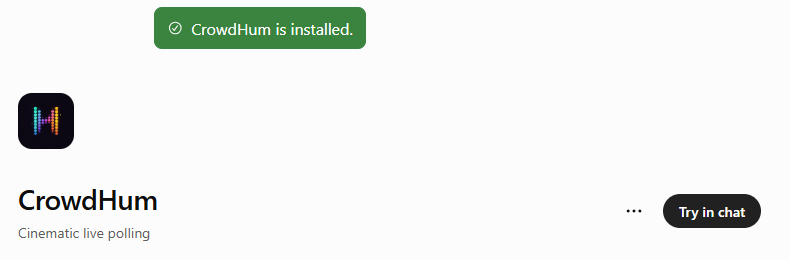
You'll land back in ChatGPT with CrowdHum is installed and a Try in chat button. Ask it to build a poll set from your agenda or to summarize how a room voted. There are a few prompts to start with further down this page.
Availability varies by plan, region, and workspace policy. If the listing isn't available to you, the most reliable next step is to ask your workspace admin to enable it. Adding the server by hand requires ChatGPT's developer mode, which ChatGPT itself flags as elevated risk because it allows unverified connectors. You can also connect from Claude or any other MCP client in the meantime, using the tabs above.
Talk to your assistant in plain language. A few prompts to start:
The MCP server gives your assistant ten tools. It reads and writes only your own CrowdHum polls and sessions.